Documentation / Using WorkSealed
Work logs
Review captured time, inspect evidence, and change assignment, comments, or billable status.
On this page
Navigate recorded work
Open to see the intervals produced by tracking. Each row shows its time span, duration, task, billable and idle status, process, and comment.
- Filter: choose a client, project, period, Billable status, or Idle status.
- Search: use Search process / title / comment to find recorded context.
- Navigate: sort columns, use the pager, or refresh the table. ⌘R refreshes the list.
- Date presets: relative periods advance when the local date changes; a custom range keeps its chosen dates.
Work logs are created by tracking and processing recorded activity; this screen is not a timesheet where you type arbitrary captured intervals.
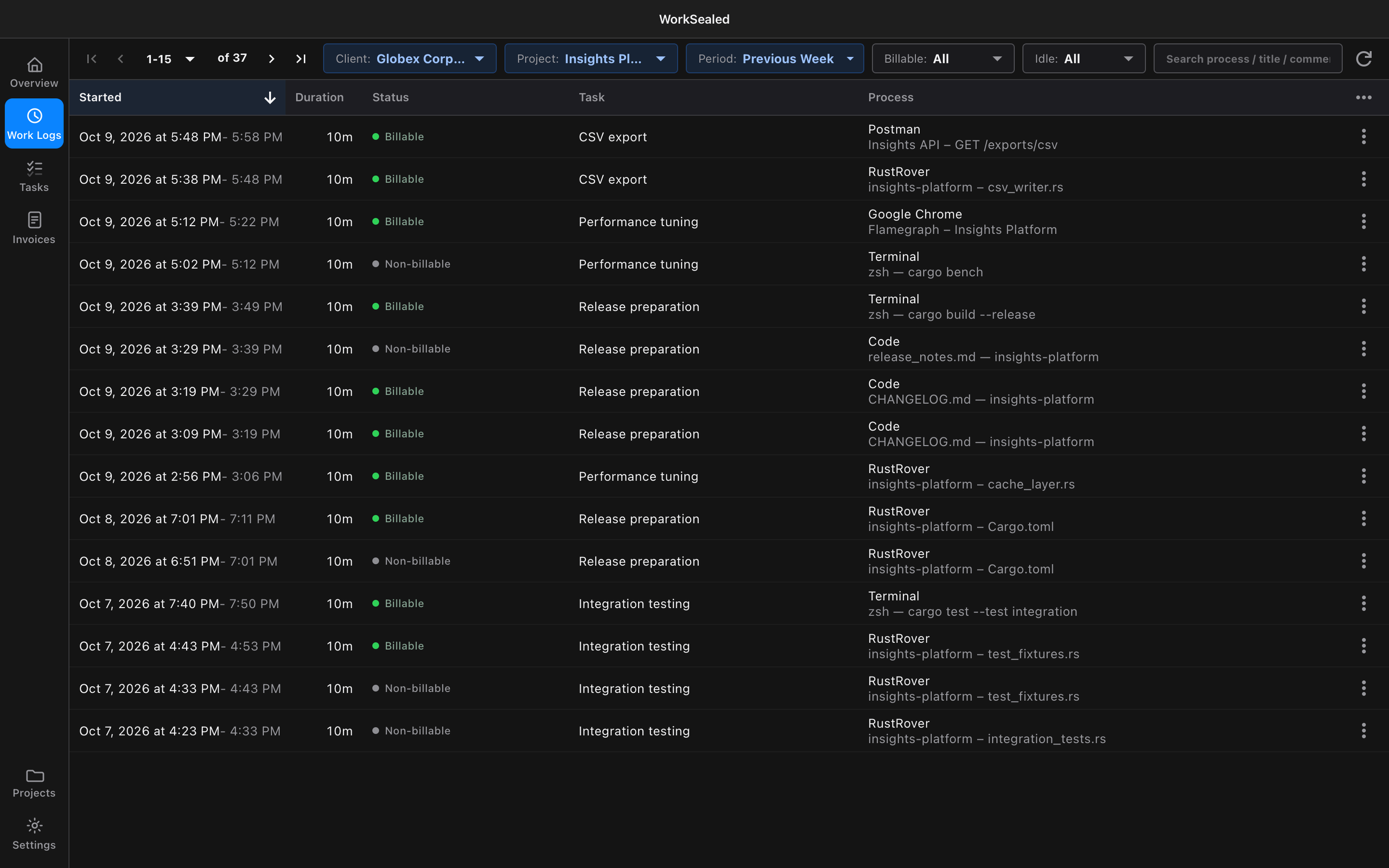
Open details or quick view
Use a row’s action menu to choose:
- : open the full detail page.
- : open a sheet beside the list.
Both provide recorded context:
- Assignment and billing: task, project, snapshotted rate, billable status, and idle status.
- Timing: start, end, and duration.
- Activity and evidence: app, window title, event counts, and reported evidence gaps.
Row clicks open quick view by default. Change Open quick view on row click under or in the sheet footer to inspect consecutive rows by clicking them. This does not change the same preference in Tasks or Invoices. Use the close button to dismiss the sheet; Escape also closes it when focus is inside the region.
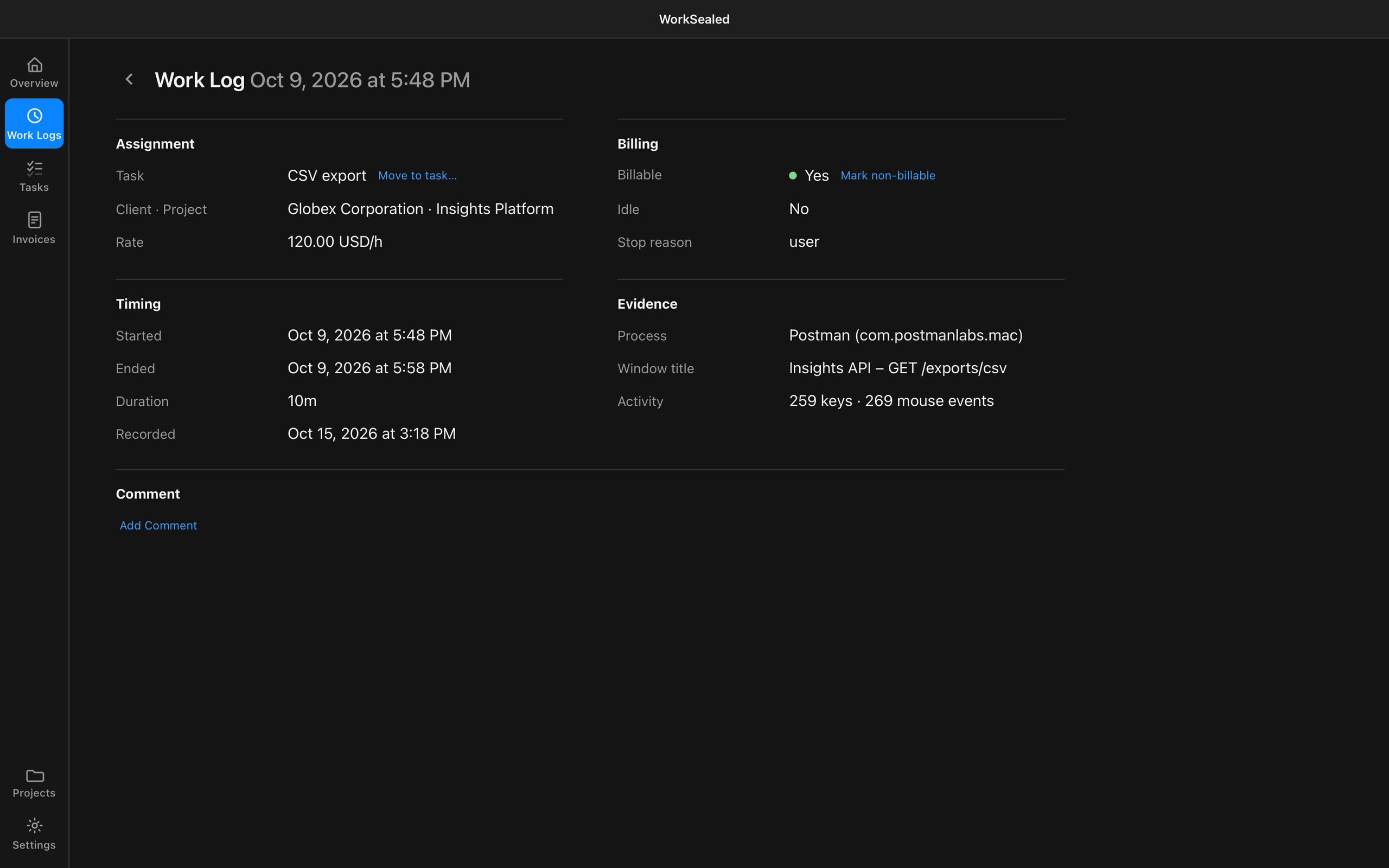
Add or change a comment
- Open the record.
- Choose or the edit button beside the existing comment.
- Enter a note explaining context or a billing decision.
- Choose , or to keep the stored comment unchanged.
Comments explain the record; they do not alter the captured evidence.
Change billable status
Use or in the detail view where available. A work log needs a task assignment for this control. Billable status and idle status are distinct: inspect both before including time in an invoice.
An invoice or other dependency can restrict changes. If the app refuses an action, follow its explanation rather than attempting to edit the database.
Move a work log
- Choose from the row menu or detail page.
- Select the destination task.
- Check the assignment before billing.
Movement rules:
- Invoiced records: cannot be moved.
- Eligible records: change assignment while keeping the captured interval, evidence, hourly rate, and currency.
Captured timing and activity are not ordinary editable form fields. WorkSealed records supported classification changes separately so they do not masquerade as the original captured evidence.
Delete work logs
- Choose from the row menu.
- Read the impact estimate and any blockers, including related evidence.
- If the record belongs to an invoice, remove its invoice line where editing is permitted or handle the invoice first. Direct deletion is blocked while it remains on an invoice.
- Confirm the deletion.
Restore eligible deletions through Recycle Bin before permanent purge.
For routine housekeeping of old work, review Backup & Restore → Cleanup. It uses a retention cutoff and creates a safety backup before deleting eligible data.
Need a hand? Contact support.