Documentation / Using WorkSealed
Projects and clients
Organize your work, inherit or override rates, and choose shared or separate budget limits.
On this page
Navigate clients and projects
- Open .
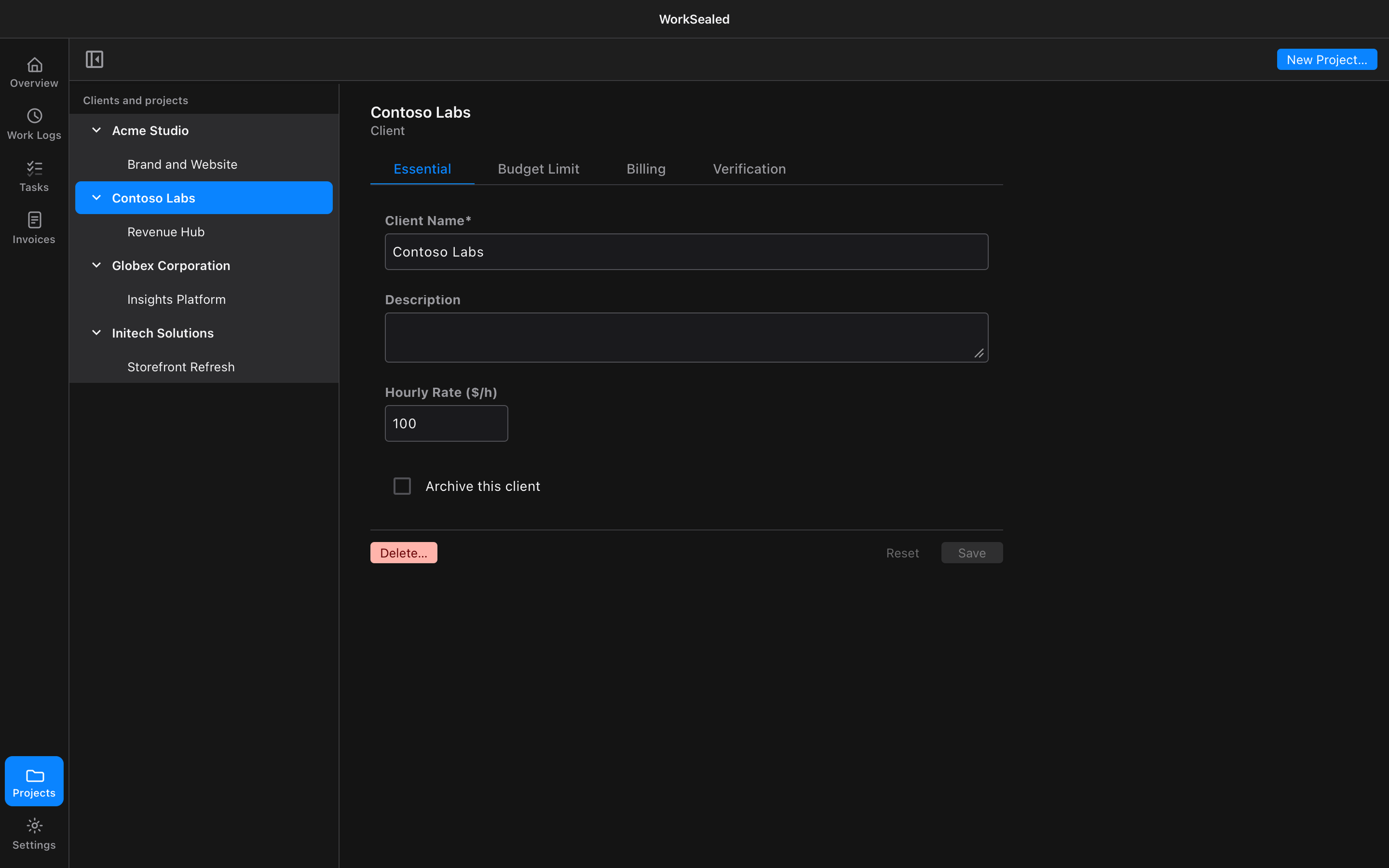
- Select a client in the Clients and projects tree to see its properties on the right.
- Expand the client to choose a project.
Tab enters the tree at the selected row. Use ↑/↓ to move focus, Home/End for the first or last row, → to expand, ← to collapse or move to the parent, and Enter or Space to select. ⌘N opens the New Project menu.
Use or to collapse or reveal the tree.
For a client with a single project, WorkSealed can show a combined client-and-project form. Multiple-project clients have separate client and project properties.
Create a client and project
- Choose → . If the list is empty, choose .
- Enter the client name, project name, description, and starting hourly rate.
- Optionally set a budget limit.
- Choose .
To add a project for an existing client:
- Open .
- Choose , or choose and select the client.
- Leave the project rate empty to inherit the client’s rate.
Update properties
- Select a client or project.
- Edit its tab. For a client’s invoice name and address, use the tab.
- Choose to apply changes, or to discard unsaved edits.
Use Archive this client or Archive this project when you want to retire an item without deleting its history. The combined one-project form offers Archive this client and its project.
How rates propagate
The most specific rate wins:
| Level | Rate used for new work |
|---|---|
| Task with its own rate | The task rate |
| Task without a rate, project with its own rate | The project rate |
| Neither task nor project has an override | The client rate |
For example, a client rate of 100 and a project override of 120 gives that project’s tasks a rate of 120, unless a task has its own override. Clear the project override to follow the client again. A rate of zero is a value; an empty override means inheritance.
When rates change:
- New inherited work: uses the updated parent rate.
- Explicit child rates: remain unchanged.
- Existing work logs: keep their snapshotted rate and currency, even if moved to another task.
Set a budget limit
Open on the client or project. Enable budget tracking, enter a positive limit amount, and choose what should happen when the limit is reached:
- Just notify me: alert you without automatically stopping the timer.
- Immediately stop time tracking and prevent task activation: stop tracking and block another start when the limit is reached.
You can also enable an early warning when a chosen percentage of the budget is left. For a 1,000 budget, a threshold of 20% means a warning when 200 remains; it does not mean 20% has been spent.
The budget’s spent amount is the current unbilled billable work in its scope, matching the available amount used when creating invoices. It is not a lifetime project-spend counter or a balance of unpaid invoices. Review it again after billing work.
Shared client budget
A client budget is shared across all its projects. Enabling it when projects have separate budgets:
- Lists the affected projects in a confirmation.
- Combines their limits into one shared limit.
- Turns off their per-project budget tracking.
Separate project budgets
A project can have its own budget when the client does not have a shared budget. Switching from a shared client budget:
- Asks you to confirm the switch.
- Turns off the client budget.
- Copies the current shared limit into the selected project as a starting point.
- Requires you to set the other projects’ limits separately.
Review the resulting amounts after either switch; a shared client limit and independent project limits represent different agreements.
Share the verification code
- Open an existing client’s tab to find its verification code and public-key details.
- Copy the code into your contract or share it through an agreed channel before sending evidence.
- Ask the recipient to compare it with the code in the verifier to check key continuity.
Delete a client or project
- Open the client or project properties and choose .
- Read the impact summary. Deleting a parent can include its dependent work and evidence.
- Resolve any blocking invoices or other dependencies identified by the dialog.
- Confirm after reviewing the effects.
Eligible deletions go to Recycle Bin, where you can restore them until they are permanently purged. Prefer archiving when you only want to stop using a client or project.
Need a hand? Contact support.