Documentation / Start here
Overview
Track work on your Mac, organize billable time, and send invoices with evidence your clients can check.
On this page
Current Version
The current version, 1.0.2, is available on the Mac App Store.
What WorkSealed does
WorkSealed is a time-tracking and invoicing app for macOS. Start a task when you begin work, stop it when you finish, and review the resulting work logs before billing a client. Your database stays on your Mac; there is no WorkSealed cloud account or sync service.
Organize your work in four levels:
- Client: the customer you bill.
- Project: a body of work for that client.
- Task: the activity you select when tracking.
- Work log: a recorded interval belonging to a task.
Set rates and budget limits at the appropriate level. Invoices can combine eligible work from one project or across a client’s projects. Use the menu-bar tracker without keeping the main window open.
From a timer to an invoice
- Set up a client, project, and task. Set the hourly rate you want to use for new work.
- Start tracking. WorkSealed collects activity only while a session is running and after you have consented.
- Review work logs. Check assignment, billable status, comments, and recorded activity.
- Create an invoice. Include tracked work and, if needed, separately labeled manual charges.
- Export evidence. Send the ZIP to your client. They unzip it and open
verify.htmlin a browser; verification runs locally, including offline.
What gets recorded
While tracking, WorkSealed records:
- Time: the interval being tracked.
- Frontmost app: the app in use.
- Keyboard and mouse event counts: totals used to distinguish activity from idle time.
- Window titles: available with optional macOS access.
It does not capture screenshots, screen pixels, audio, clipboard contents, file contents, or the text you type.
Raw Data Filters let you exclude matching apps or windows from raw evidence capture and processing. Tracking settings control idle handling and how often time is saved.
How sealing works
- A finished work record receives a digital fingerprint.
- Signed audit events and inclusion proofs connect the record to the sealed history.
- Verification detects changes to protected captured data instead of accepting them as the original record.
If external anchoring is enabled, WorkSealed sends a fingerprint of a sealed audit block to an independent timestamp authority. The returned receipt provides evidence that the block existed by the timestamped time. Local sealing also works with Offline only; those exports lack an independent timestamp until one is obtained.
Only fingerprints are sent for timestamping. Authorities can see the IP address and request time, but client names, task names, rates, window titles, and work-log contents are not sent in the timestamp request.
See Sealing, anchoring, and external Time Stamping Authority (TSA) service for the terms, their relationship, and what each check establishes.
Reading the Overview
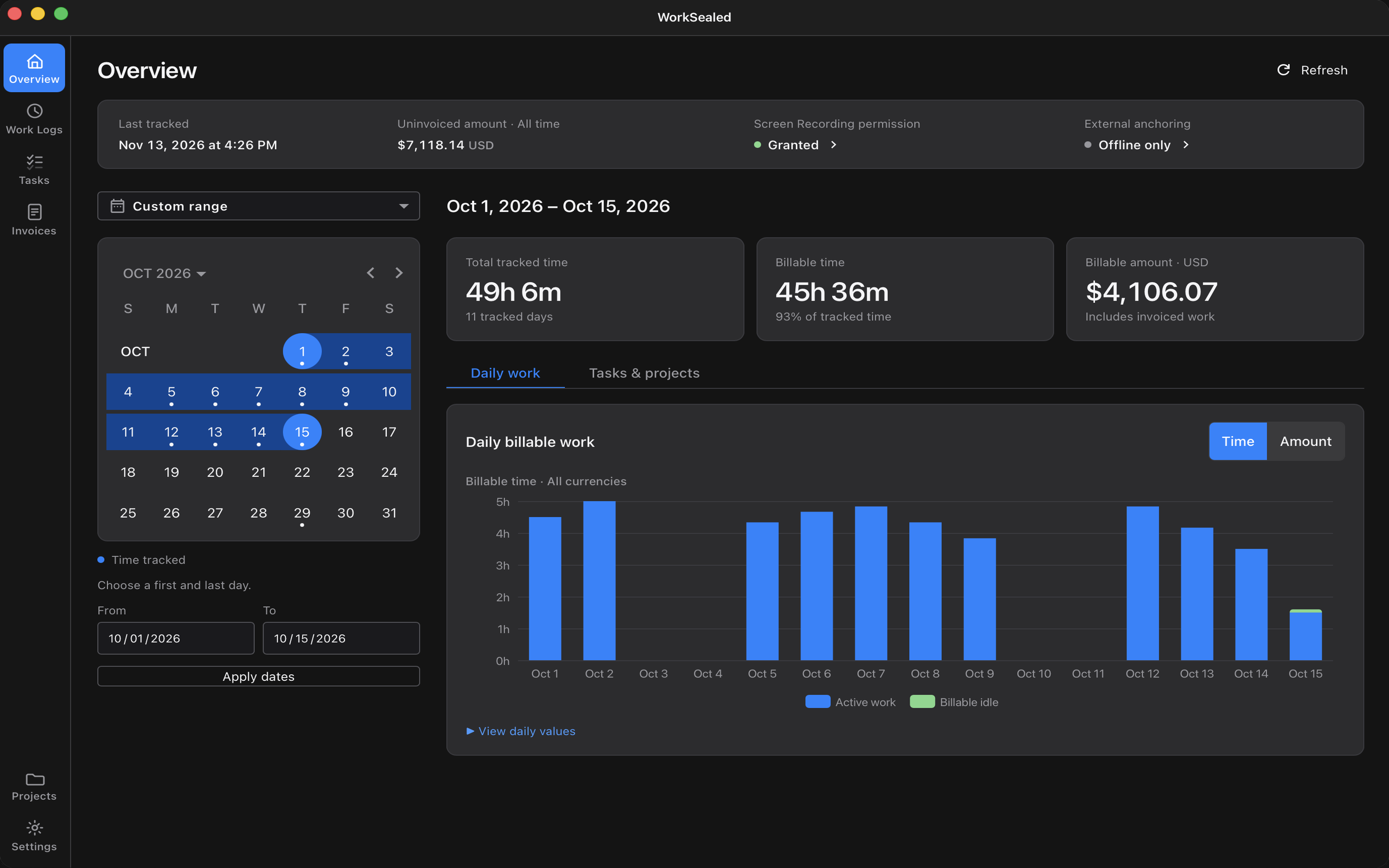
The Overview summarizes tracked time, billable time, and billable amounts.
- Choose a period: the period dropdown offers Last Active Day, Last Active Week, calendar presets such as Current Month and Previous Week, and Custom day or Custom range. Overview opens on the last active week, so recent work stays visible even after a break.
- Set exact dates: select dates in the calendar or enter From and To, then choose . Calendar dots mark days with tracked work.
- Switch the chart: choose or .
- Break down the period: open , or Top tasks when only one project is present.
- Read idle time: daily charts distinguish active work from billable idle time. Use View daily values for the table.
- Refresh: choose ; you can also press ⌘R.
The top summary also shows the last tracked time, the all-time uninvoiced amount, and permission and anchoring status. Those all-time figures are not the same as the totals for the selected chart period.
What verification cannot establish
Evidence describes what the application observed and how its records were sealed. Keep these limits in mind:
- Identity and quality: records do not prove who was at the keyboard or judge the quality of the work.
- Manual lines: these have no captured-work evidence.
- Signing identity: a signature identifies the holder of a key. Agree the verification code with your client separately to associate that key with a sender.
Try the live sample package, read how it works, or continue with Getting started.
Need a hand? Contact support.