Documentation / Using WorkSealed
Invoices
Build invoices from recorded work, manage their lifecycle, and export a package your client can verify.
On this page
Navigate invoices
Open . Filter by client, project, or status. Not Paid Yet includes New and Pending invoices. Sort the table to find an invoice by number, date, amount, due date, or status.
The row menu offers:
- : inspect the invoice beside the list.
- : open the editor.
- : prepare the evidence package.
- : create a copy, subject to work-log availability.
- : review deletion.
Available edits and exports depend on the invoice status.
Create an invoice
- Choose .
- Select the Client and optionally a Project. All projects includes eligible work across that client.
- Check Available amount, calculated from unbilled eligible work logs.
- Accept the prefilled amount or enter the amount you want to invoice.
- Choose , then review the invoice editor.
If no unbilled work logs are available, you can still create an empty invoice and add manual lines.
When an amount does not match whole records
Work-log records are not silently cut into smaller intervals to force a requested total. If the amount does not match whole records, the amount chooser offers:
- Exact total: include a manual adjustment.
- Under target: use the closest available set below the requested amount.
- Over target: use an available set above the requested amount.
The manual difference is clearly labeled. Review it before proceeding, especially when your client expects every charge to correspond to tracked time.
Edit invoice lines
For a New invoice:
- Review the included work logs and eligible work.
- Exclude lines you do not want to bill.
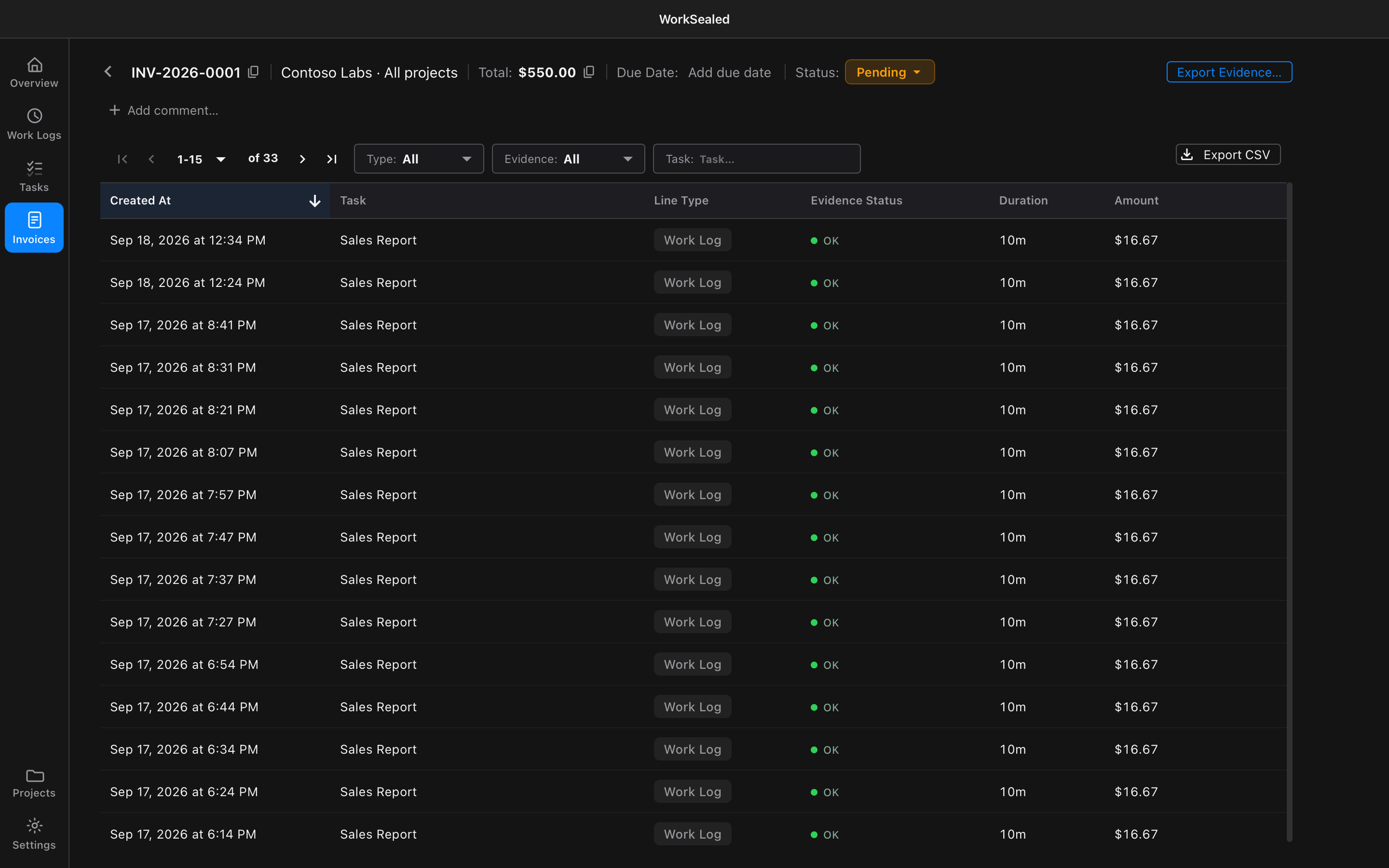
- Use to add manual fees, expenses, or adjustments. These have no captured-work evidence.
- Use if you need the amount-choice workflow again.
Use the lines table controls to:
- Filter line type: Work Log or Manual.
- Filter evidence status: OK, Tampered, or No evidence.
- Export the list: choose . A CSV does not replace the signed evidence package.
Use the invoice header to set a due date or add a comment. Review the sender information, client billing identity, and template settings before exporting.
Press ⌘N on the invoice list to create an invoice, ⌘N in an editable invoice’s lines table for New Line, and ⌘E in the invoice editor for Export Evidence. Invoice dialogs also support saving and applying choices with ⌘S. See keyboard shortcuts.
Status and corrections
| Status | Meaning and next action |
|---|---|
| New | Editable draft. Move it to Pending when ready to send. |
| Pending | Issued invoice with work-log lines frozen for billing. Mark Paid or Rejected By Client, or return to New for a correction. |
| Paid | Terminal status; there is no further status transition. |
| Rejected By Client | Terminal status; use a replacement invoice if you need to bill again. |
Use the Status menu in the invoice header. Returning an invoice to New does not recall a ZIP you have already sent; coordinate corrections with your client and send a fresh export.
Duplicating an invoice does not guarantee that all original work logs can be reused. Review any partial-duplicate warning and the resulting lines.
Quick view
Open from the row menu. The list stays available for comparing other invoices.
- Edit the invoice: choose to open the full editor.
- Inspect a line type: select its summary to open matching lines.
Row clicks open quick view by default. Change Open quick view on row click under or in the sheet footer. Close the sheet with its close button, or Escape while focus is inside it.
Export evidence
- Choose from the invoice or its row menu.
- If the invoice is New, confirm moving it to Pending. Its work-log lines are then frozen for billing.
- Wait while WorkSealed checks evidence and attempts timestamping when enabled.
- Review warnings. A changed evidence result may require you to inspect affected lines and export again. Tampered lines are explicitly marked in the recipient’s verifier.
- If a timestamp is pending, choose or knowingly export without it. A later export can include the receipt once obtained.
- Select an invoice template when offered, then choose and save the ZIP.
Offline-only packages remain locally signed and are labeled as an offline-only profile. No timestamp request is attempted in that mode. Changing the invoice template changes invoice.html, not the signed evidence.
Send the ZIP with instructions to unzip it and open verify.html. The package includes:
| File or evidence | Purpose |
|---|---|
verify.html |
Checks the signed evidence in a browser. |
manifest.json |
Holds the signed invoice data. |
invoice.html |
Provides a readable invoice rendering. |
lines.csv |
Provides a convenience copy of the lines. |
| Timestamp receipts, when available | Supply independent time evidence. |
Check important totals against the verifier; the HTML invoice and CSV are convenience renderings. See the sample package.
Delete an invoice
Deletion depends on status:
| Status | Effect of deletion |
|---|---|
| New | Discards the draft directly after confirmation. Work logs remain and become available for billing; the draft does not enter Recycle Bin. |
| Pending or Paid | Uses an impact estimate and Recycle Bin. Billed work logs also enter the bin, preventing accidental re-billing. |
| Rejected By Client | Releases work-log lines for reuse; review the deletion dialog for the full impact. |
Read the actual dialog before confirming. Restore eligible items through Recycle Bin before permanent purge.
Need a hand? Contact support.