Documentation / Start here
How it works
Follow your work from starting a timer to sending an invoice your client can verify.
On this page
WorkSealed turns tracked time into invoices backed by sealed records. Your client can check that the billed hours match those records and that the records have not changed.
1. Set up your client and task
- Add a client and project.
- Create a task and set the rate for the work.
- Use a task name your client will recognize, such as “September sales report” or “Website homepage.”
No account is needed. Your data stays in files on your Mac; WorkSealed does not sync it or copy it to a cloud service.
See Projects and clients and Tasks for the controls.
2. Start tracking when you begin work
- Click the WorkSealed icon in the macOS menu bar to open the tracking popover.
- Choose in the popover and select the task you want to work on.
- Press when work begins. Check that the popover shows Tracking and the intended task name.
- Press in the same popover when you finish.
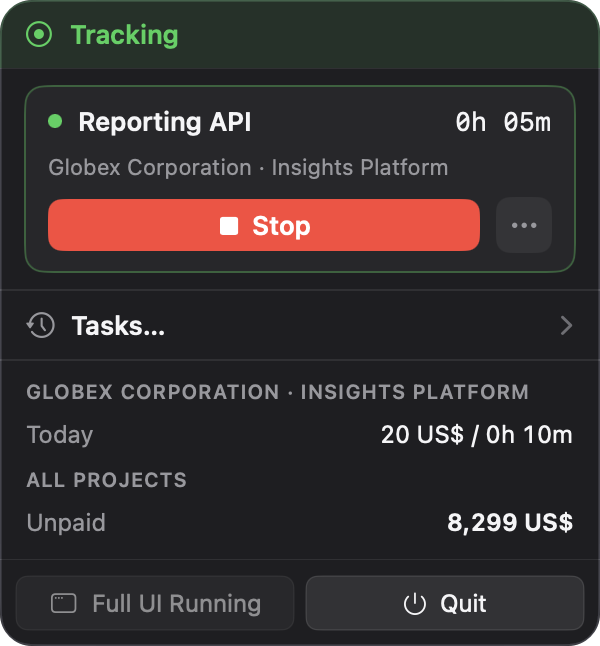
While the timer runs, WorkSealed records:
- App activity: the app you use.
- Window title: available if you grant optional macOS permission.
- Event counts: totals of key presses and mouse events, used to distinguish active time from idle time.
WorkSealed does not capture screenshots, typed text, clipboard contents, or file contents. You can exclude apps or window titles from capture. Tracking still works without window-title permission.
See Getting started for consent and permissions, and Raw Data Filters for exclusions.
3. WorkSealed seals each completed record
Sealing happens as work records are completed:
- Tracked time is saved as individual work records.
- A record completes at the configured record length or when tracking stops.
- WorkSealed fingerprints the record’s time, task, rate, and recorded activity.
- Signed history connects the records and groups that history into sealed audit blocks.
Sealed records are never rewritten. If protected captured data changes later, its fingerprint no longer matches. The verifier also checks where a record belongs in the signed history.
4. Optionally add an independent timestamp
Choose whether sealed audit blocks receive independent timestamps:
| Mode | Result |
|---|---|
| External timestamping | An external Time Stamping Authority (TSA) service returns a signed receipt showing that a block’s fingerprint existed by a particular time. |
| Offline only | Tracking, local sealing, and verifiable invoices still work, without an independent timestamp. |
When external timestamping is enabled:
- WorkSealed sends only a digital fingerprint (hash) of a sealed audit block to an external Time Stamping Authority (TSA) service.
- The external Time Stamping Authority (TSA) service returns a digitally signed receipt linking that fingerprint to a time.
- WorkSealed includes available receipts in exported evidence.
Privacy and protocol details:
- Not sent: client names, task names, window titles, and work-log contents.
- Visible to the external Time Stamping Authority (TSA) service: your IP address and request time.
- Protocol: RFC 3161.
For the terminology and how the evidence fits together, read Sealing, anchoring, and external Time Stamping Authority (TSA) service. Configure the mode and providers in Anchoring.
5. Build an invoice from your tracked work
- Choose the client and billing period.
- Create an invoice from the work you want to bill.
- Review tasks, hours, rates, and amounts before sending it.
Tracked lines link to the sealed work records that support them. If a client rejects an invoice and you create a replacement, the original sealed work records remain unchanged.
See Invoices for creation, corrections, and status changes.
6. Add any manual invoice lines
Use manual lines for charges such as:
- Fixed fees: an agreed charge independent of tracked hours.
- Expenses: one line per expense, with an explanation.
- Adjustments: a separately explained change to the total.
The verifier distinguishes the two sources:
| Label | Meaning |
|---|---|
| App-observed | Tracked records backed by captured work evidence. |
| Manual | Charges you entered; these are not generated from work logs. |
The invoice signature covers manual lines too, so later changes can be detected.
7. Export and send the evidence package
- Export the invoice’s evidence package.
- Review the package before sharing it.
- Send the ZIP through your usual invoice-delivery channel.
- Ask the client to unzip it and open
verify.html.
The package includes:
- Invoice data and supporting records: the basis for checking billed work.
- Signatures: used to detect changes.
- Timestamp receipts: independent time evidence, when available.
- Browser verifier:
verify.html, which checks the signed invoice data. - Convenience copies:
invoice.htmlandlines.csv.
Ask the client to check important details in the verifier rather than relying only on the convenience copies.
8. Your client checks the invoice
Verification runs in the client’s browser, including offline. No account, app installation, or upload is required.
The verifier checks:
- Whether billed tracked hours match the sealed work records.
- Whether the invoice signature matches the signing key shown in the package.
- Whether work records have changed since sealing.
- Whether records match their place in the sealed history.
- Whether included timestamp receipts cover the sealed blocks.
For signing-key continuity, your client can compare the key fingerprint with one you shared earlier in a contract or invoice.
Verification has these limits:
- Identity: a signature identifies the holder of a key; it does not establish a person’s identity by itself.
- Human activity: records cannot establish who was at the keyboard.
- Work quality: records cannot establish whether the client considers the work worth the charge.
- External Time Stamping Authority (TSA) service trust: the browser does not validate the external Time Stamping Authority (TSA) service’s certificate chain. The package’s
README.txtexplains separate checks.
Need a hand? Contact support.