WorkSealed

Time tracking and invoicing for macOS.

Track your work. Send invoices your clients can verify.

Your clients can check that the hours you bill match your sealed work records.

No account. No cloud. Your work stays on your Mac.

30-day free trial. One-time purchase. No subscription.

WorkSealed Overview with a calendar, daily work chart, 49 hours 6 minutes tracked, and 45 hours 36 minutes billable for October 1–15.
Your work, at a glance.See a verifiable invoice

Screenshot preview

Open full-resolution image

Collect evidence of your work.

Start a task from the menu bar. WorkSealed records the work session until you stop it, and splits it into work logs.

Track from the menu bar

  • Start, stop, and switch tasks without opening the main window.
  • See time and amount for today, this week, this month, and unpaid work.
  • Close the lid to stop. After sleep, WorkSealed asks if you want to resume.
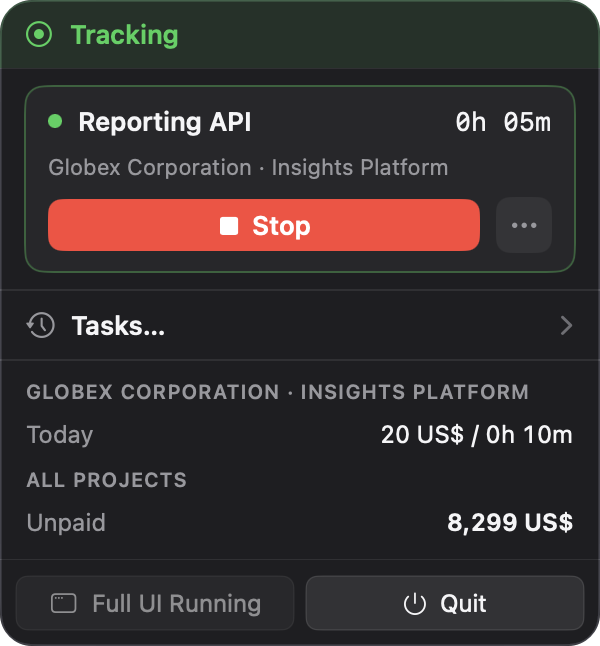
WorkSealed tracking the Reporting API task for Globex Corporation, Insights Platform, with a Stop button, today’s time and amount, and the unpaid total across all projects.

What a work session records

  • Nothing, until you give consent. Without consent, a timer cannot start.
  • The app you are working in.
  • The window title of that app, only if you allow it in macOS.
  • Counts of keystrokes, clicks, mouse moves, and scrolls.
    • Totals only. Never which keys you pressed or where the pointer went.

Idle time

  • WorkSealed detects idle time and shows it in the menu bar.
  • Choose what happens to idle time:
    • ask me when I return
    • keep it, but do not bill it
    • keep it and bill it

Review before you bill

  • Mark work logs as non-billable.
  • Move a work log to another task.
  • Add a comment to explain a work log.
How sealing works

As soon as a work log is complete, WorkSealed creates a digital fingerprint from its time, task, rate, and recorded activity.

  • WorkSealed never rewrites sealed work logs.
  • If you move a work log or change its billable status, WorkSealed records the change separately.
  • Any later change to a sealed work log makes the fingerprint check fail.
  • If you turn on timestamping, an external Time Stamping Authority (TSA) signs the time when each block of fingerprints existed.
See how it works, step by step

Send invoices your client can check.

Build an invoice from your work logs. Export a package that your client verifies in a browser, offline.

An itemized invoice

Your client sees the billed work, tracked time, and amount due.

Sample invoice INV-2026-0001 for Contoso Labs, showing a 550.00 USD total, spending by task, and itemized work logs.Open the sample invoice

A clear verification result

All checks passed for this sample: the billed work matches its signed, timestamped records.

Verification result for the same sample invoice: all five cryptographic check tiers passed, including 33 billed work-log records and two external timestamps.Run the sample checks

A real WorkSealed export with invented client data. Your client needs no account, and the checks work offline.

Create the invoice

  • Bill one project, or all of a client’s projects in one invoice.
  • Enter a target amount. WorkSealed picks the whole work logs that best match it.
  • Add or remove individual lines.
  • Add manual lines for fixed fees, expenses, or work the app could not track.

Send and follow up

  • Send the whole package, or only the invoice.
  • Mark each invoice as Pending, Paid, or Rejected by client.
What’s in the exported package
  • invoice.html — The invoice, in the template you choose.
  • verify.html — Runs every cryptographic check offline and shows the result for each work log.
  • lines.csv — The invoice lines, for bookkeeping.
  • manifest.json — The signed invoice data.
  • anchors/*.der — RFC 3161 timestamp receipts, if you turned on timestamping.
  • README.txt — What the package proves, its limits, and steps for advanced checks.
What your client’s verifier checks
  • The billed tracked hours match the sealed work logs.
  • The work logs have not changed since they were sealed.
  • The invoice signature matches the signing key shown in the package.
  • The work logs match the sealed history.
  • The work logs existed by the independently recorded time, if you turned on timestamping.

Nothing is uploaded, and your client needs no account. The check works with the internet switched off.

Tracked lines and manual lines

WorkSealed marks every invoice line as tracked or manual.

  • Tracked lines come from sealed work logs.
  • Manual lines are lines you add yourself: fixed fees, expenses, or adjustments. No work logs back them.
  • The invoice signature covers manual lines too. Your client can detect added, removed, or changed lines.
See a sample invoice package

Your work stays on your Mac.

WorkSealed records only while a task is running, and only after you give consent.

What it reads while you track

  • The name and identifiers of the app in use.
  • The window title of that app, only with macOS permission.
  • Counts of keystrokes, left and right clicks, mouse moves, and scrolls.

Where it stores data

  • In a local database, inside the app’s sandbox folder.
  • Backups go to a folder you choose.
    • If a cloud service syncs that folder, that service uploads the backups.

When it goes online

  • To request timestamps from a Time Stamping Authority (TSA), only if you turn on Anchoring in Settings.
    • It sends only a fingerprint (hash) of a sealed block.
  • When the App Store checks your trial or purchase.

What it never does

  • Send telemetry or analytics.
  • Upload your work logs or backups.
  • Take screenshots, read screen pixels, or run text recognition.
  • Record your screen or audio.
  • Record which keys you press.
  • Record where the pointer moves or what you click on.
  • Read your clipboard or file contents.
What the timestamp service receives

If you turn on Anchoring, WorkSealed sends only a digital fingerprint (hash) of each sealed audit block to an external Time Stamping Authority (TSA).

  • The TSA returns a signed receipt. The receipt proves that the block existed by that time.
  • No names, window titles, or work-log contents are sent.
  • The TSA can see your IP address and the time of the request.
  • The exchange follows RFC 3161, the internet standard for timestamps.

If you leave Anchoring off, everything else still works.

See what happens to your data

Clients, projects, and tasks.

Group your work by client and project. Track time against tasks.

Rates and budgets

  • Set an hourly rate on a client, a project, or a task. The most specific rate wins.
  • Past work logs keep the rate they were recorded with.
  • Set a budget limit. Get a warning before it runs out, or stop tracking when it does.

Keep your lists short

  • Archive clients and projects you no longer work on.
  • Mark finished tasks as completed.
  • Delete what you no longer need. Restore it from the Recycle Bin until its purge date.
Read about projects and clients

Set it up for the way you work.

Each setting has its own page in the documentation.

Under the hood.

The technical details, for readers who want them.

Built with

  • Core service in Rust, with a SQLite database.
  • Main window in Tauri. Menu-bar app in native Swift.
  • Sandboxed Mac App Store app.

Cryptography

  • Ed25519 signatures and SHA‑256 hashes over canonical JSON (RFC 8785).
  • Hash-chained audit events, committed into Merkle trees.
  • Optional RFC 3161 timestamps from external TSAs.

Network surface

  • No open network ports.
  • The app’s processes talk over Unix domain sockets inside the app sandbox.
Read about sealing and anchoring